Offline readiness
Stay ready, even when your connection isn't.
From connected to covered.
Here's what happens to a page from the moment you save it.
1. Save
Keep selected pages, documents or learning resources for later.
2. Prepare
Download supported content while you have connectivity.
3. Access
Open your saved material when you're offline, subject to each page's offline support.
How to prepare
Four steps to being ready.
- 1
Save the page you need
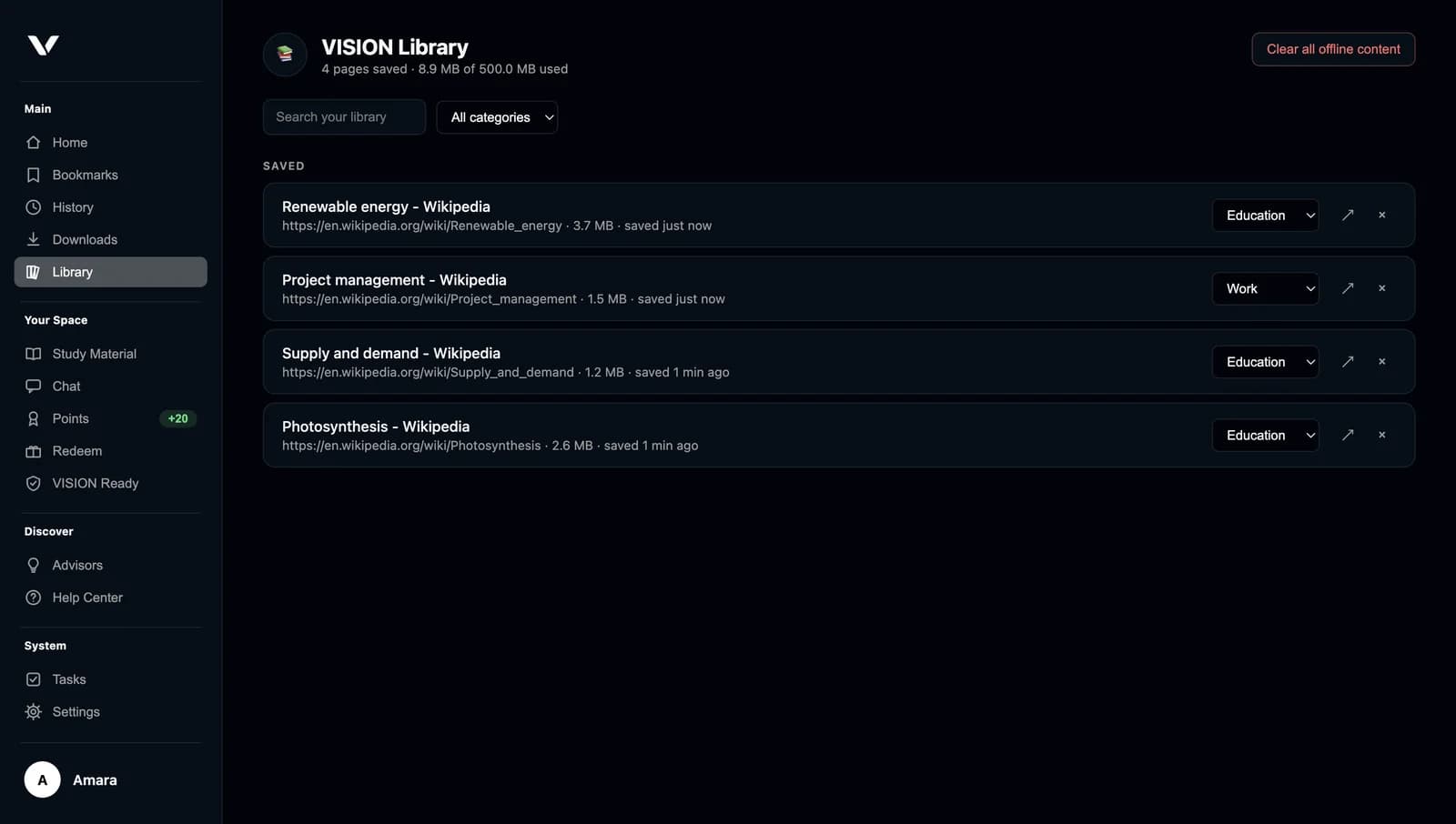
Open the page and choose the save-for-offline button in the toolbar. VISION keeps a complete copy on your device and adds it to your VISION Library.
- 2
Organise it
Give saved pages a category such as Education or Work. Pages saved under Education also appear in Study for review.
- 3
Let VISION keep it fresh
While you're online, VISION refreshes saved pages in the background and suggests pages you visit often. You can turn this off, or limit it to Wi-Fi.
- 4
Open it offline
Open your Library, or switch the new tab to Offline to see what you've saved. If a page you saved won't load, VISION opens your saved copy instead.
Your VISION Library: search, filter by category, reopen or remove saved pages.
Honest limits
What works offline, and what doesn't.
VISION opens copies of content you saved earlier. It doesn't provide an internet connection, and it can't make live websites work without one.
Usually works offline
- Articles, guides and reference pages
- Textbook chapters and course pages that load as normal pages
- Documents you've added to Study Material or a Space
- Your bookmarks, history, notes and Ask VISION chats
- Ask VISION, if you've downloaded the offline model
Needs a connection
- Pages that need you to sign in to see them
- Streaming video and audio
- Live information such as feeds, chat, maps or prices
- Sites that build their content as you interact with them
- Anything you haven't saved while you were online
Storage you control
Set a limit for offline storage. Pages you saved yourself are never removed automatically.
Lite Mode
Stop images and video from loading across every tab to save data on slow or costly connections.
Wi-Fi only
Ask VISION to prepare content in the background only when your system isn't on a cellular connection.
Troubleshooting
Common questions about saved pages and offline use.
A saved page looks different or is missing parts
Some sites load parts of the page only as you scroll or interact. Open the page fully, scroll to the end, then save it again. Reader View can also help you save a cleaner version of an article.
A saved page won't open offline
Check that it appears in your VISION Library. If it does, open it from there. If it doesn't, it wasn't saved — save it again next time you're online.
My saved pages are out of date
Background refresh only runs when you're online, and may be paused on metered connections or if it's switched off in Settings → Offline storage. Open the page online and save it again to update it immediately.
VISION removed some saved pages
If you set a storage limit, VISION may remove pages it saved for you automatically, such as accepted suggestions — oldest first. Pages you saved yourself are never removed automatically.
Ask VISION isn't answering offline
Offline answers need the offline Ask VISION model. Download it while you're connected (about 1.1 GB) and wait for it to finish.
Make your browser work better for you.
Discover a more organised way to browse, learn, and work with VISION.